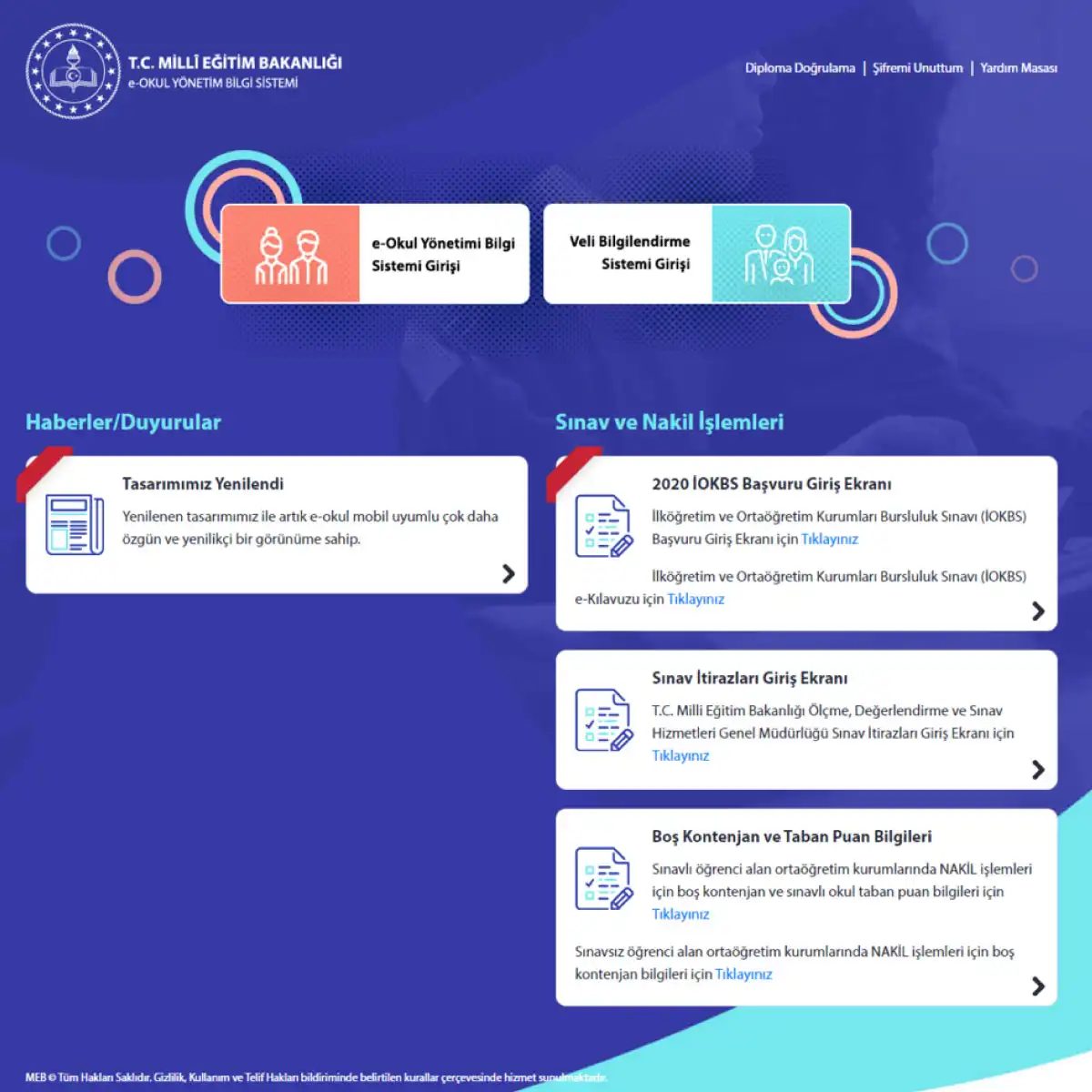
E-Okul isn’t just a database. It’s a bridge. It connects parents, students, and schools using modern tech to share vital info instantly. You want to know your grade or check an absence? Just a few clicks. Sounds easy. It is.
But for many, the process feels clunky at first. The interface isn’t always intuitive. The login steps can be confusing. Panic sets in. Don’t panic. We’ll walk you through it. Slowly. Clearly.
Logging Into E-Okul
First things first. You need access. How do you get there?
- Go to the official E-Okul website.
- Look for the “Giriş” (Login) button. Usually top right.
- Enter your T.C. Identity Number or Student Number.
- Type in the password you set up initially.
If you’ve forgotten your password, there’s a reset link. Don’t skip it. Click it. Follow the prompts. Use your registered phone number or email.
“E-Okul saves time. No more calling the school office for a simple grade check.”
Once logged in, the dashboard loads. It might take a second. Be patient. Look for tabs like “Notlar” (Grades) or “Devam” (Attendance). Click them. Data appears. Simple.
Wait. Did it work? Sometimes servers lag. Try refreshing. Or check your internet connection. Small things matter.
You’re in. Now what? The next steps depend on what you need. Grades? Absences? Both? We’ll get there. But first, secure your session. Log out when done. Safety first.
Tarayıcınızı açın. Adres çubuğuna https://e-okul.meb.gov.tr/logineOkul.aspx yazın. Site açıldığında ilk dikkatinizi çeken şey üst kısımdaki doğrulama kodu olur. Bu kod her yenilemede veya giriş denemesinde değişir. Yanlış kod girmek sizi dışarı atar. Doğru kodu girin.
Sonra T.C. kimlik numarasını girin. Bu numara mutlaka öğrencinin kendi kimlik numarası olmalı. Başkasınınkini girmek işe yaramaz. Ardından öğrencinin okulu için olan okul numarasını ilgili kutuya yazın. Tüm veriler doğruysa turuncu “Giriş” butonuna tıklayın.
Butona bastığınızda süreç bitmez. Karşınıza kişisel sorular çıkar. Bu sorular her seferinde farklılık gösterir. Güvenlik önlemi olarak konulmuş. Soruları doğru yanıtlarsanız bir adım daha ileri gidersiniz. Sonrasında öğrenciye ait bir fotoğrafı seçmeniz istenir. Bu fotoğraf, profilinizle eşleşmelidir. Hatalı fotoğraf seçimi girişi engelleyebilir. Fotoğrafı işaretledikten sonra “Tamam” butonuna basın. E-Okul ekranına hoş geldiniz.
E-Okul Not Bilgisi Nasıl Öğrenilir?
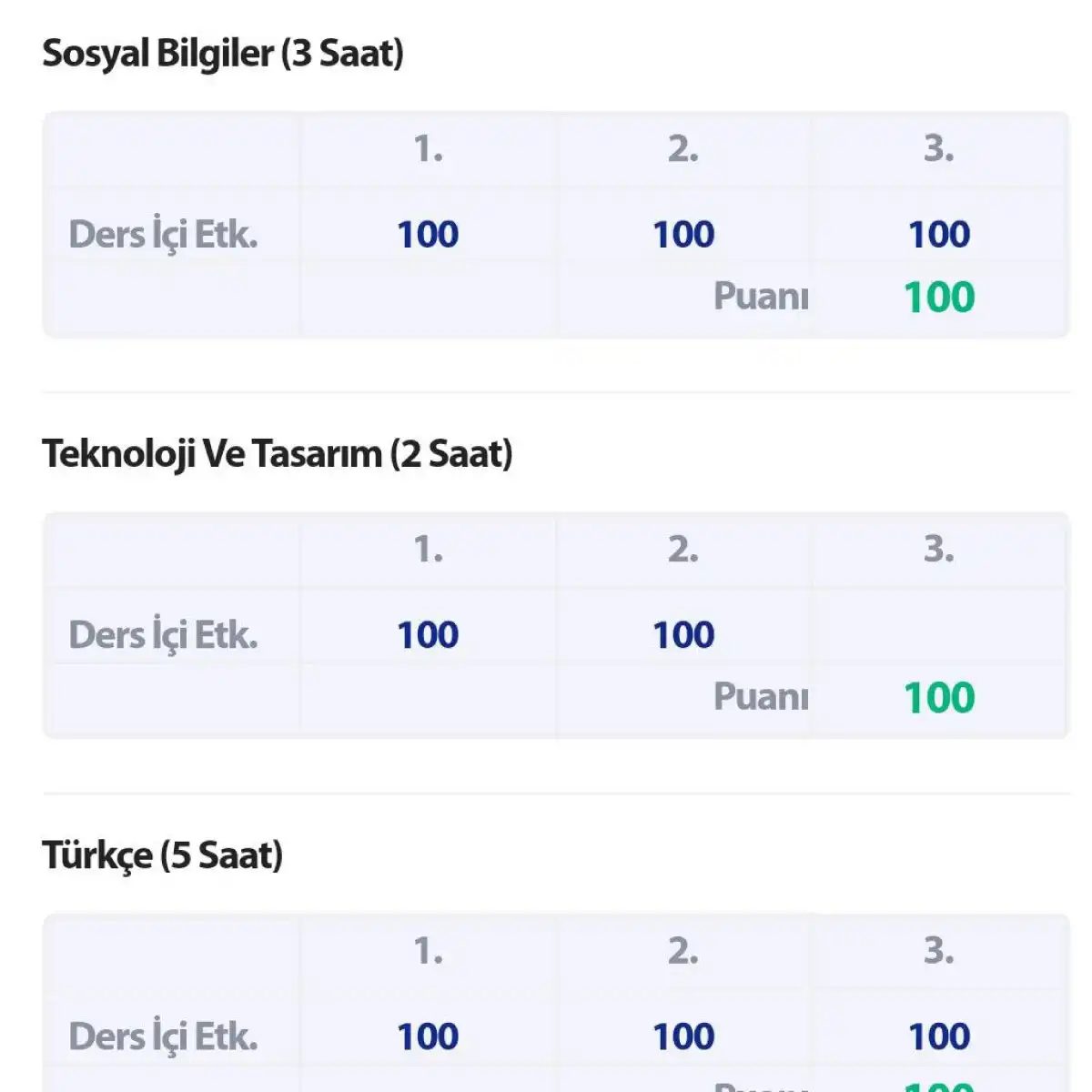
Giriş yaptıktan sonra notları görmek için menüyü dikkatli incelemek gerekir. Genellikle sol taraftaki menüler veya üst sekmeler üzerinden “Ders Notları” veya “Öğrenci Belge İşlemleri” gibi başlıklara tıklamanız gerekir.
- Menüyü Seçin: Ana ekrandan notların bulunduğu bölüme gidin.
- Dönemi Belirleyin: Hangi dönemdeki (1. dönem, 2. dönem veya genel) notları görmek istediğinizi seçin.
- Filtreleme: İsterseniz belirli bir ders veya haftalık durumları filtreleyebilirsiniz.
- Sonuçları Görüntüleyin: Ekran üzerinde yazılı notlarınızı, yoklama durumunuzu ve genelleştirilmiş performansınızı görebilirsiniz.
Bazı durumlarda notlar anlık güncellenmeyebilir. Sistemde gecikme olursa birkaç saat beklemek gerekebilir. Ayrıca, veliler veya öğrenciler notlara ulaşırken karşılaştıkları teknik sorunları okul idaresine iletmeleri en sağlıklı yoldur.
Not sadece bir rakam değil. Öğrenme sürecinin bir göstergesi. Sadece geçmek için değil, anlamak için takip edilmeli.
How to Check Attendance on e-Okul
Once you are logged into the e-Okul portal, the path to checking absences is almost identical to checking grades. The interface keeps things simple so you don’t have to hunt for hidden menus.
Click on “Student Information” on the left sidebar. It is usually the first option you see after login.
From the dropdown menu, select “Absence Information”.
This is not just a list of dates. It breaks down exactly which days the student was marked absent. You can see the total count, the reasons if they were provided, and the specific classes affected.
For parents, this is the place to catch patterns early. A sudden jump in absences often signals trouble before it becomes a crisis.
The data updates in real time. If a teacher marks a student absent today, you will see it reflect here almost immediately. No waiting for end-of-term reports.
Some schools use this section to track late arrivals too. If your district includes tardiness in the absence record, it will show up here. Look for columns labeled “Late” or “Early Departure” if they appear.
Keep this page bookmarked. Checking monthly is better than waiting for the report card.
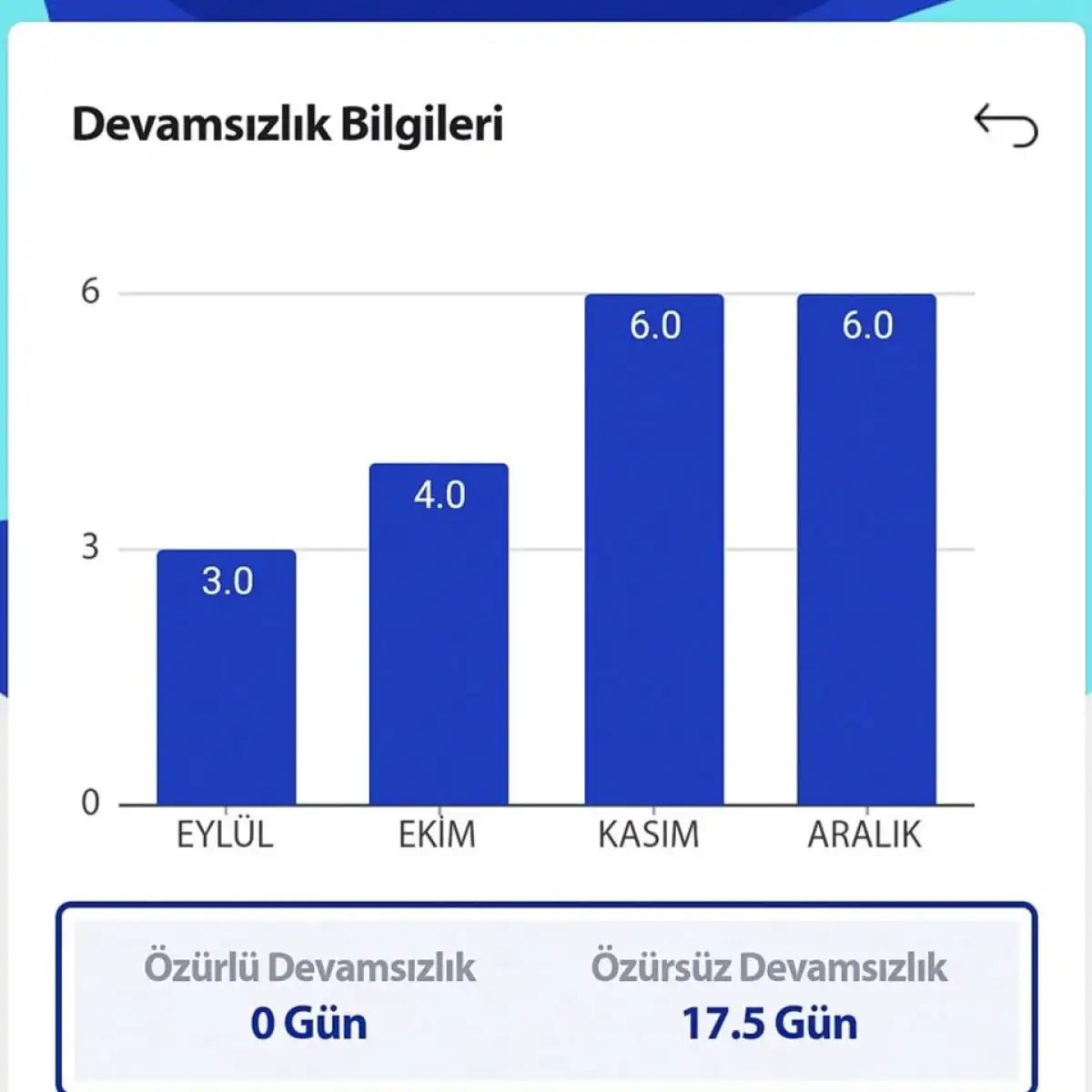
Locating Absence Records on e-Okul
Getting to the specific data you need on the Turkish e-Okul portal is straightforward, provided you know exactly where to click. The interface can feel cluttered if you are looking for granular details like attendance, but the path is linear once you start.
First, ensure you have successfully logged into the system. From the main dashboard, look to the left-hand sidebar. You will see a button labeled “Öğrenci Bilgileri ” (Student Information). Click that. This opens up a nested menu containing various administrative categories.
Scroll down or scan that list until you find “Devamsızlık Bilgisi ” (Absence Information). Select it.
The system will immediately load the current attendance status for the selected student.
This is the quickest way to view up-to-date absence records without digging through report cards or contacting school administration. It gives you a clear snapshot of where the student stands regarding their attendance requirements.